Getting started
winecode runs on iOS, Android, web browsers, and macOS (Tauri). Data syncs in real time so you see the same information on every platform.
- Use iPhone in the kitchen during service
- Use a PC in the office after hours
—and more. Open winecode on whichever platform you prefer.
Create an account
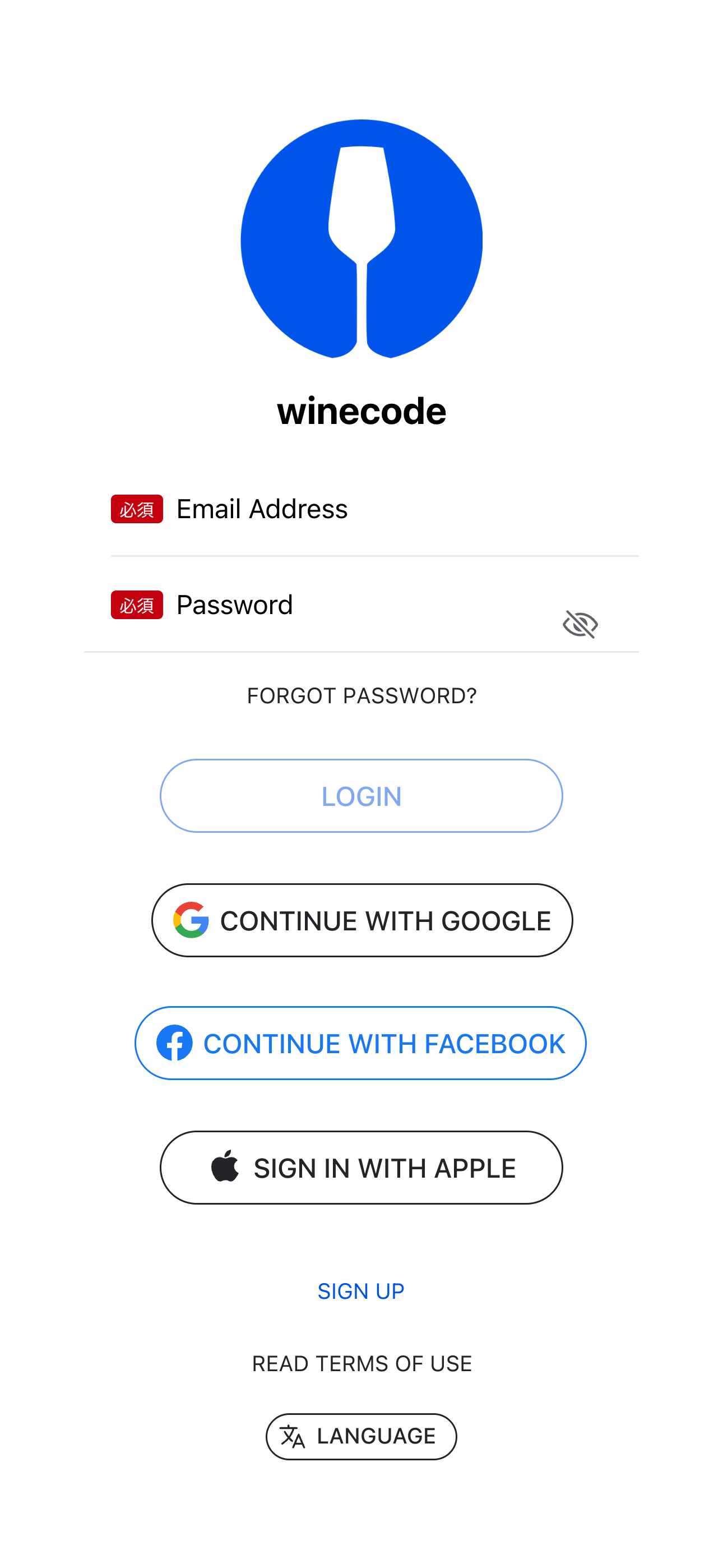
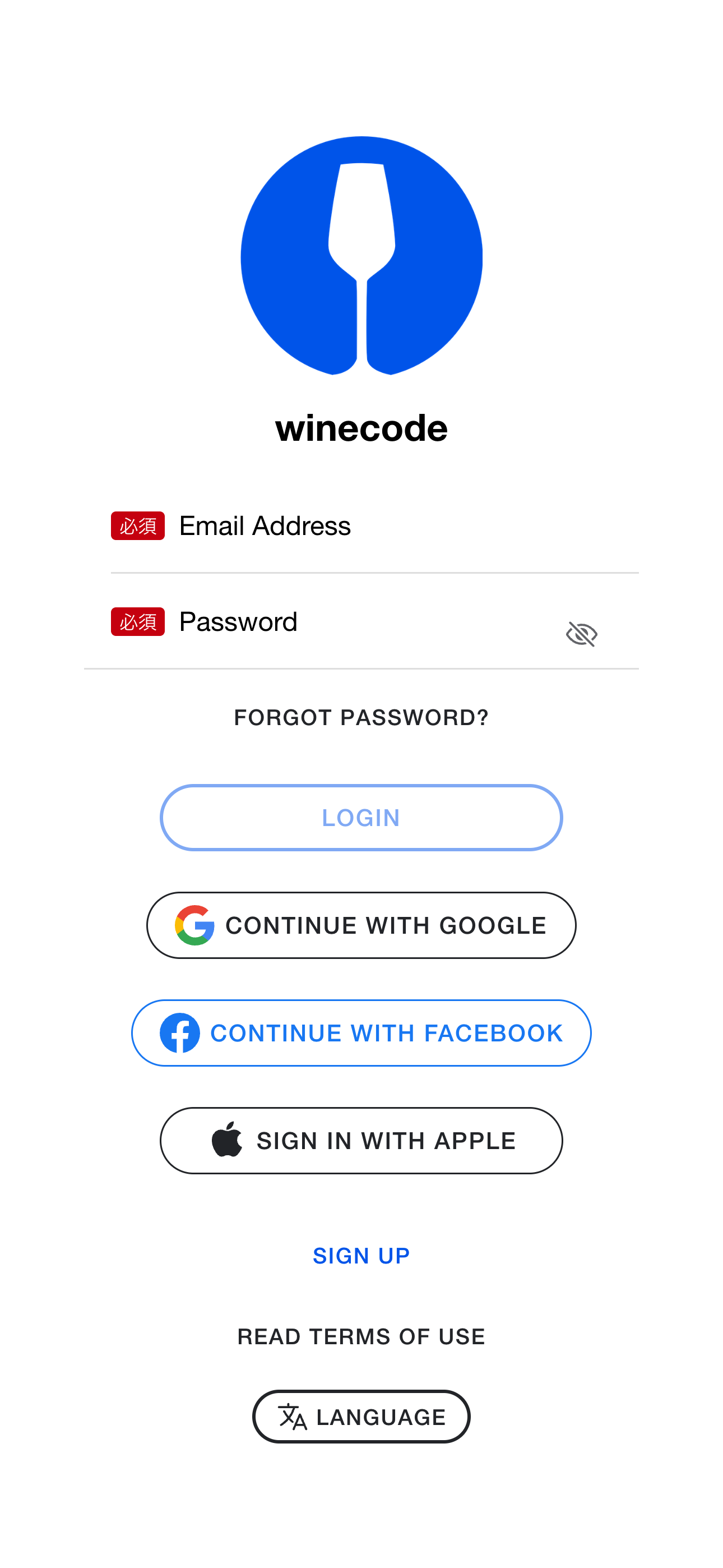
You can register with an email address or sign in with Google, Apple, or Facebook. Choose one of the sign-in methods shown.
Below those options you’ll find “Register with email”—use it if you prefer a work email address.
Some teams share one login, but we recommend an account per staff member so change history shows who did what.
If you register by email, a confirmation message is sent from [email protected]. Check spam or promotions folders if it doesn’t arrive.
Initial setup
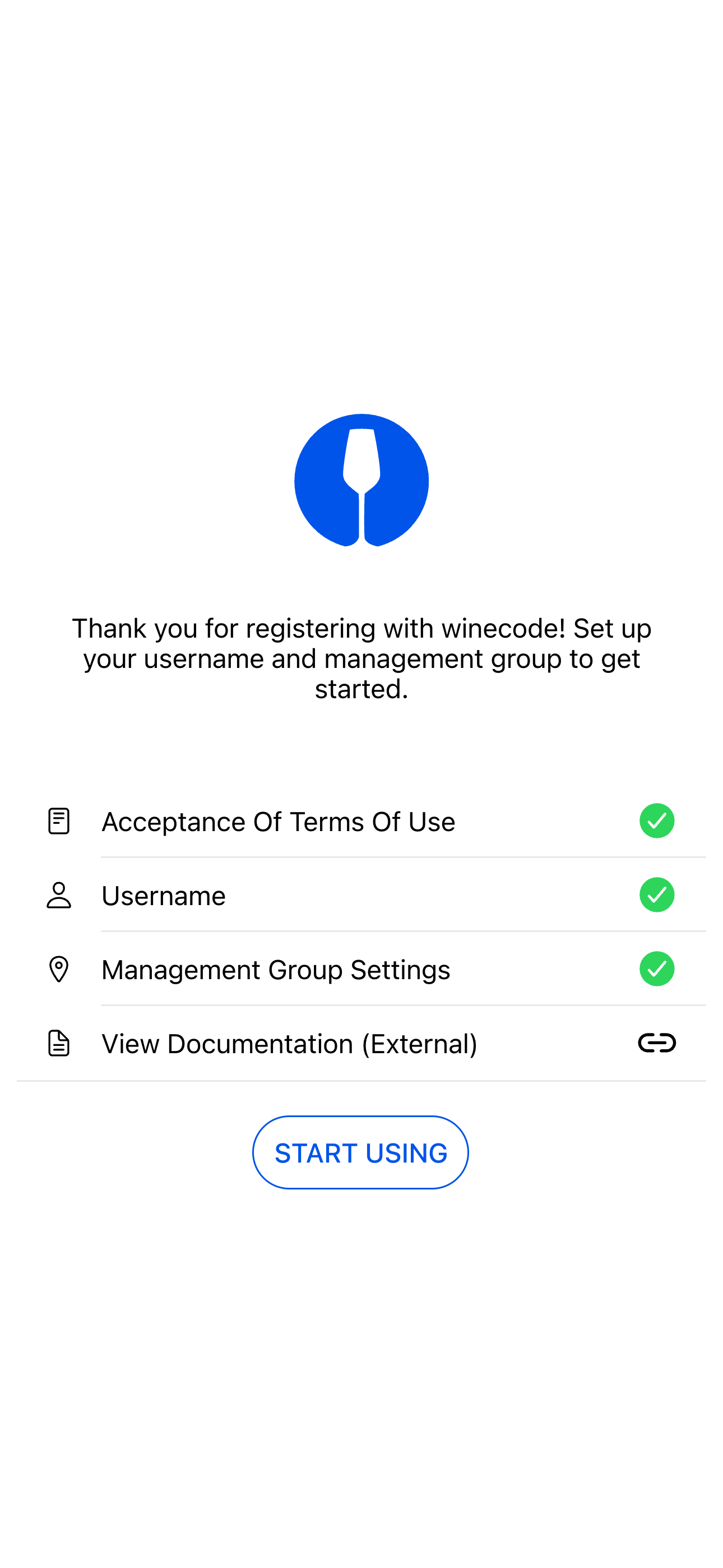
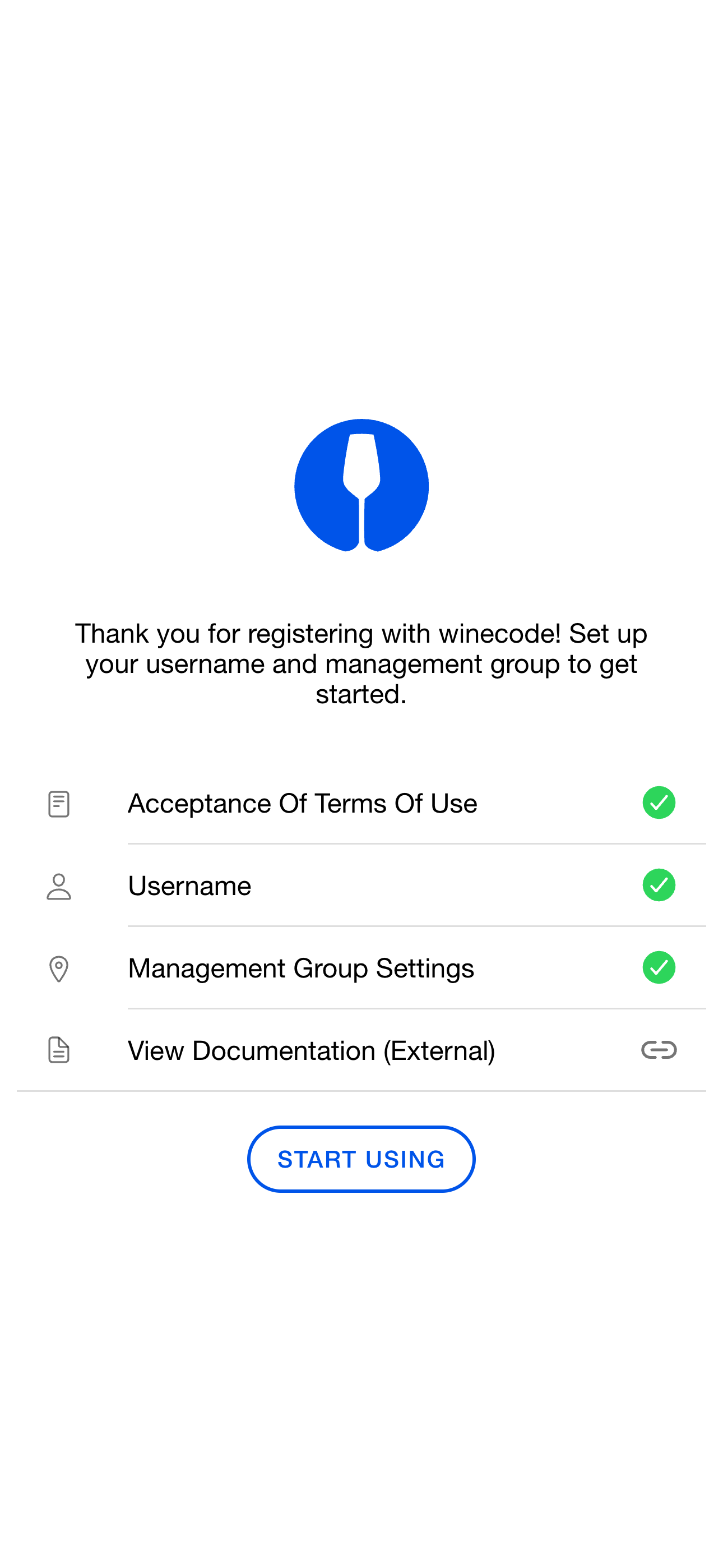
After registration you’ll see the terms of service. Accept them to continue with initial setup.
- Username — Used to identify who performed which action when several staff share a group. You can change it later.
- Management group — Every wine belongs to a management group. Register your main venue first; you can add more groups later.
Tap “Start using winecode” to finish setup.
App layout
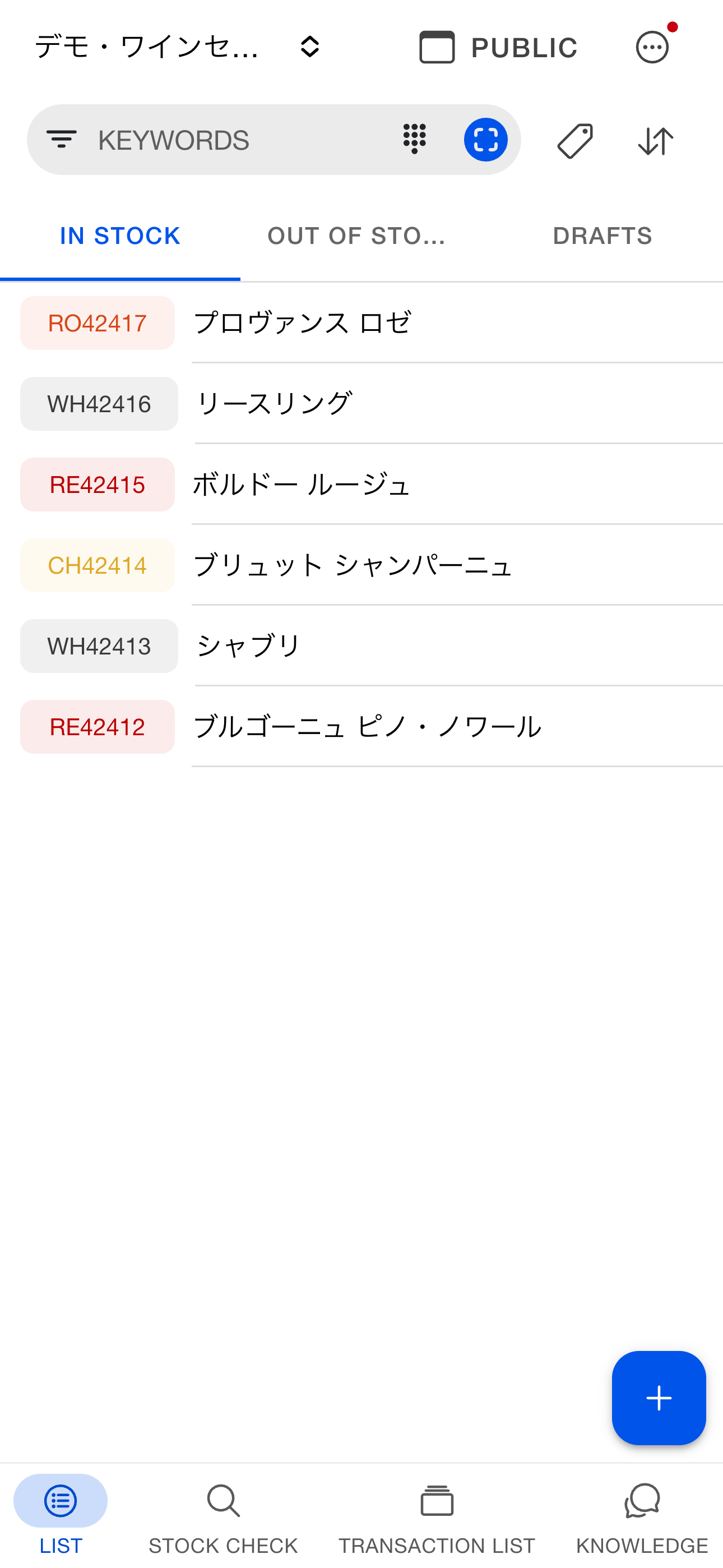
After you sign in, switch between four main areas with the tab bar at the bottom.
| Tab | Role |
|---|
| Threads | Wine thread list: add stock, consume, search, open details |
| Stock check | Barcode / RFID scanning for stock counts and inventory |
| Transactions | Slips, full transaction log, and quantity / value / stock charts |
| Knowledge | Add text, PDFs, and images, search documents, and chat with AI |
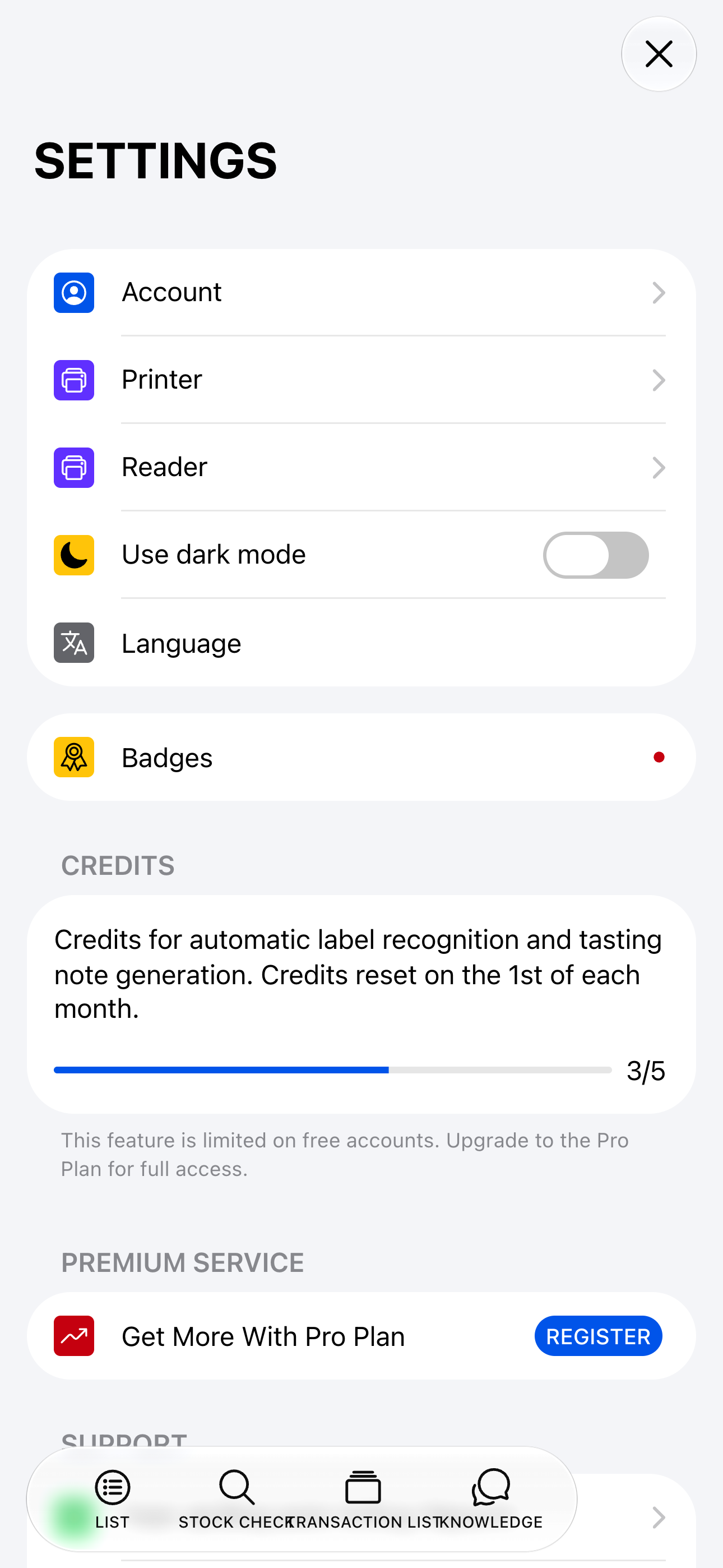
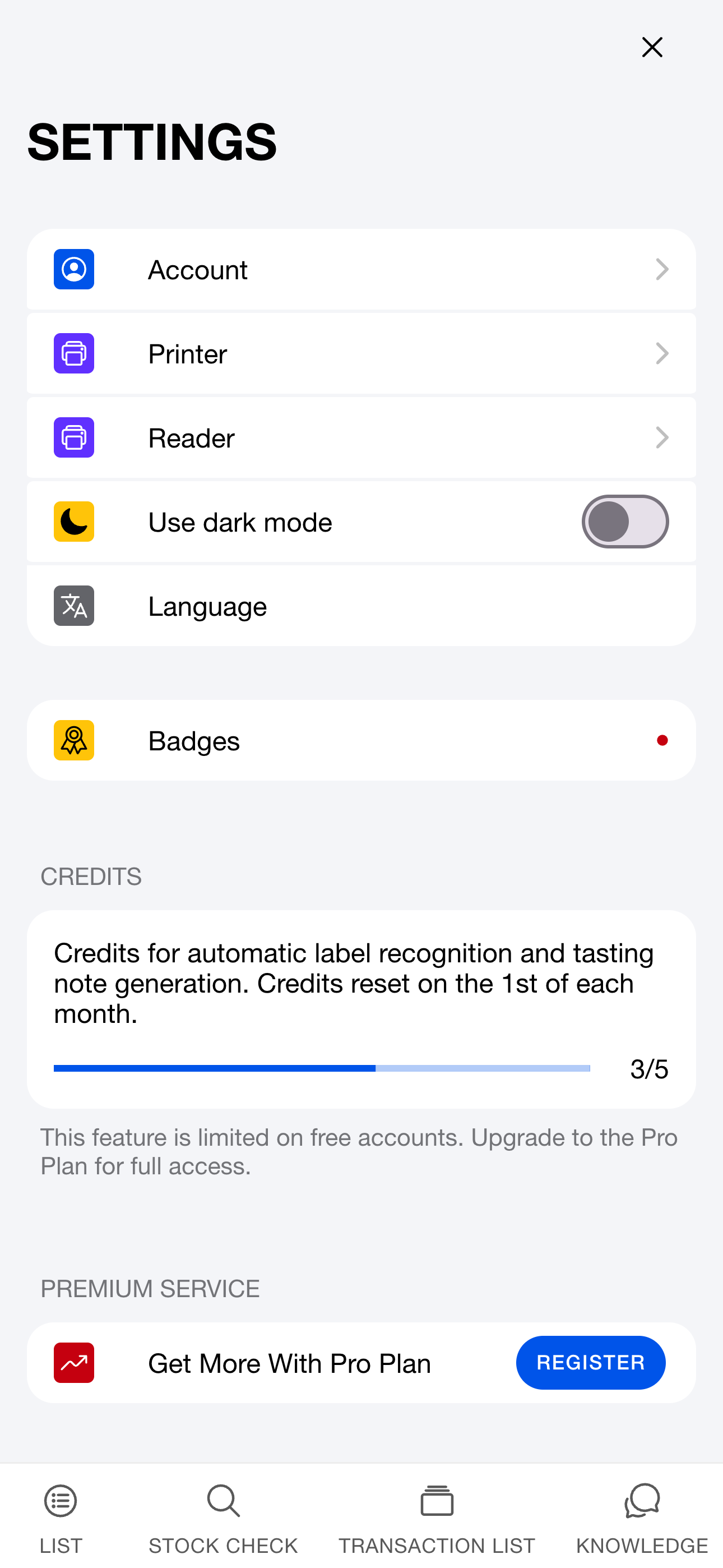
Open group management and settings (account, printer, reader, and plan) from the “…” menu in the upper right.
Tap the group name in the header to switch groups—handy when you run multiple venues or cellars.
Creating and using threads
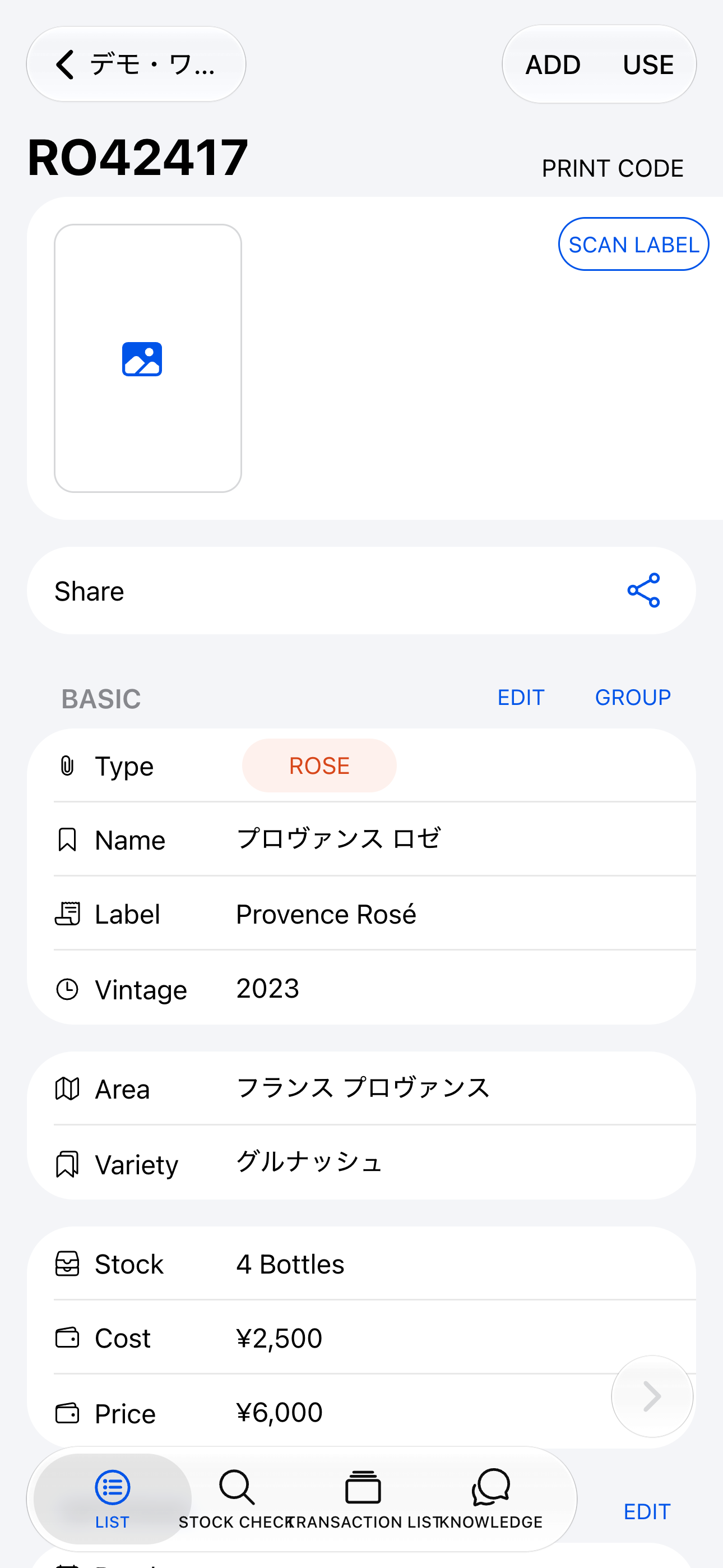
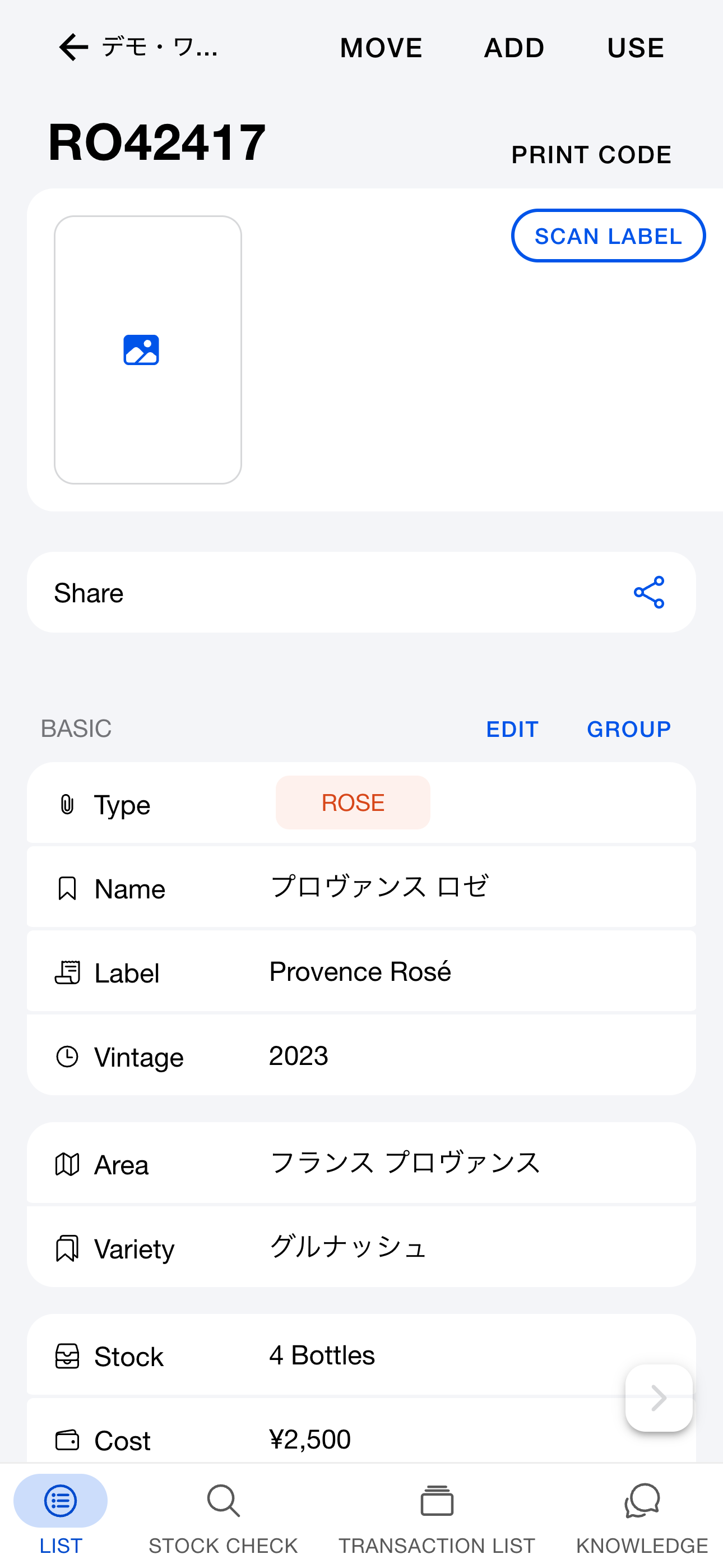
winecode organizes wines in threads—one thread per wine SKU you manage.
You can store the following in a thread:
- Wine name (name) and label name (label)
- Vintage year (vintage / NV)
- Region, producer, appellation, grape variety
- Label photos (multiple)
- Purchase price, selling price, glass price, reference retail
- Tasting notes and tasting tags
- Free notes (storage location, remarks, etc.)
Transactions (additions and consumption) and change history are stored with the thread.
Creating a thread
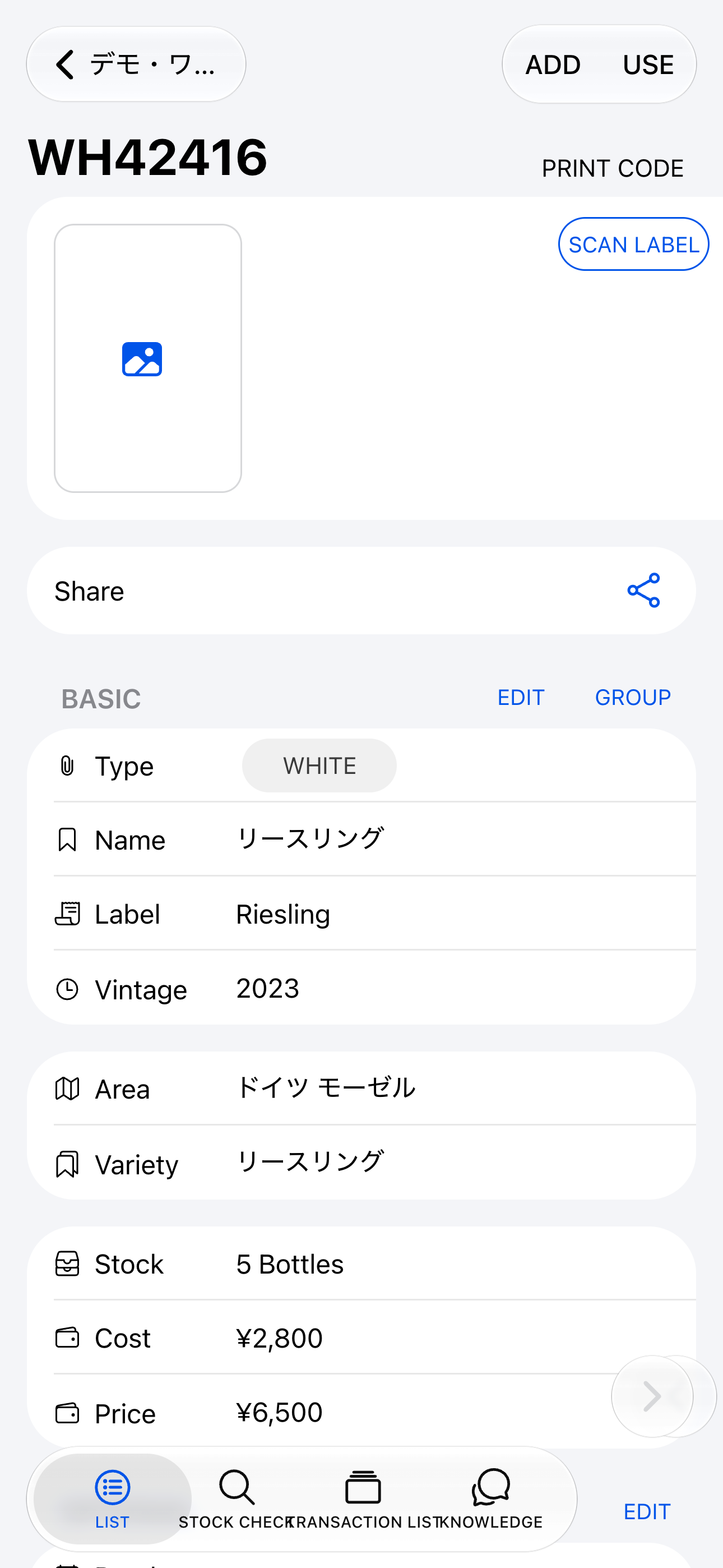
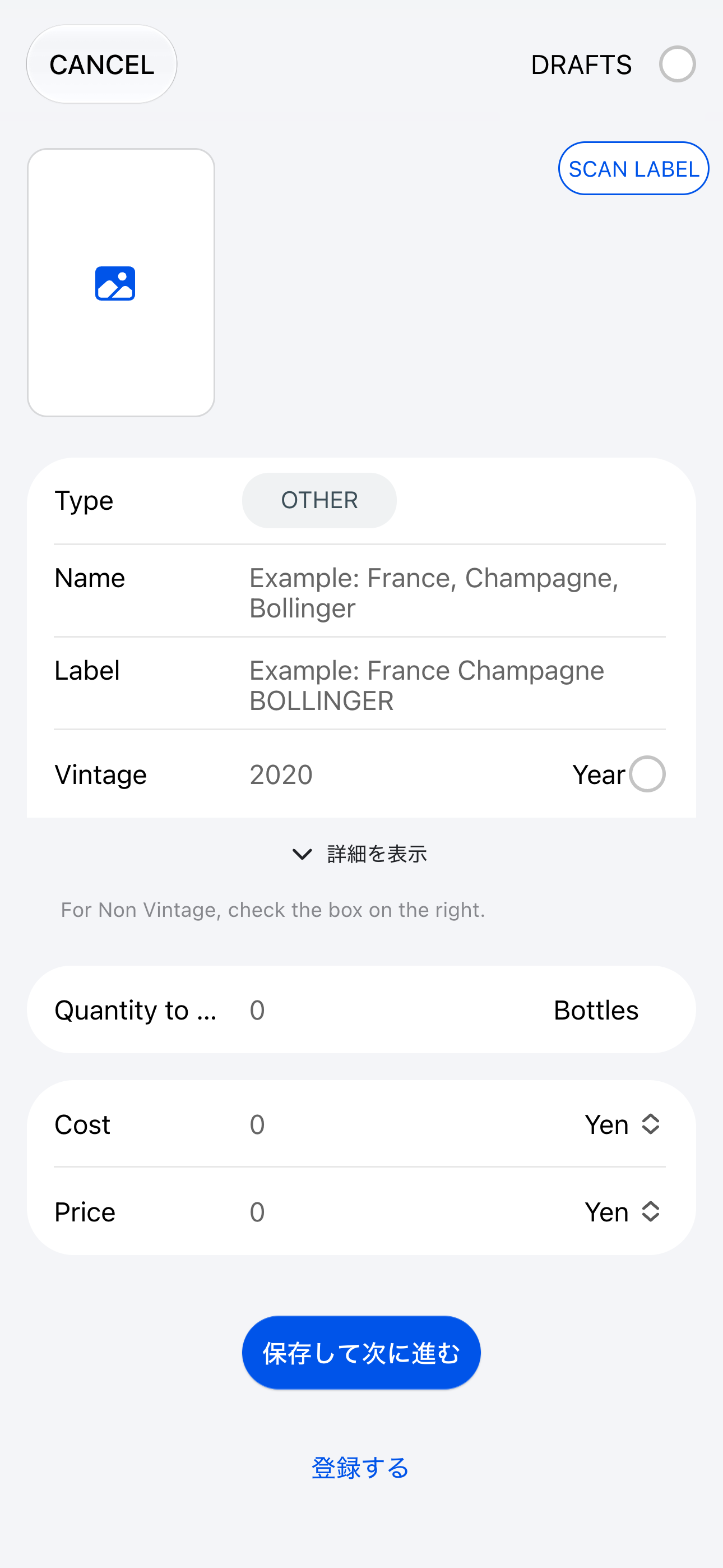
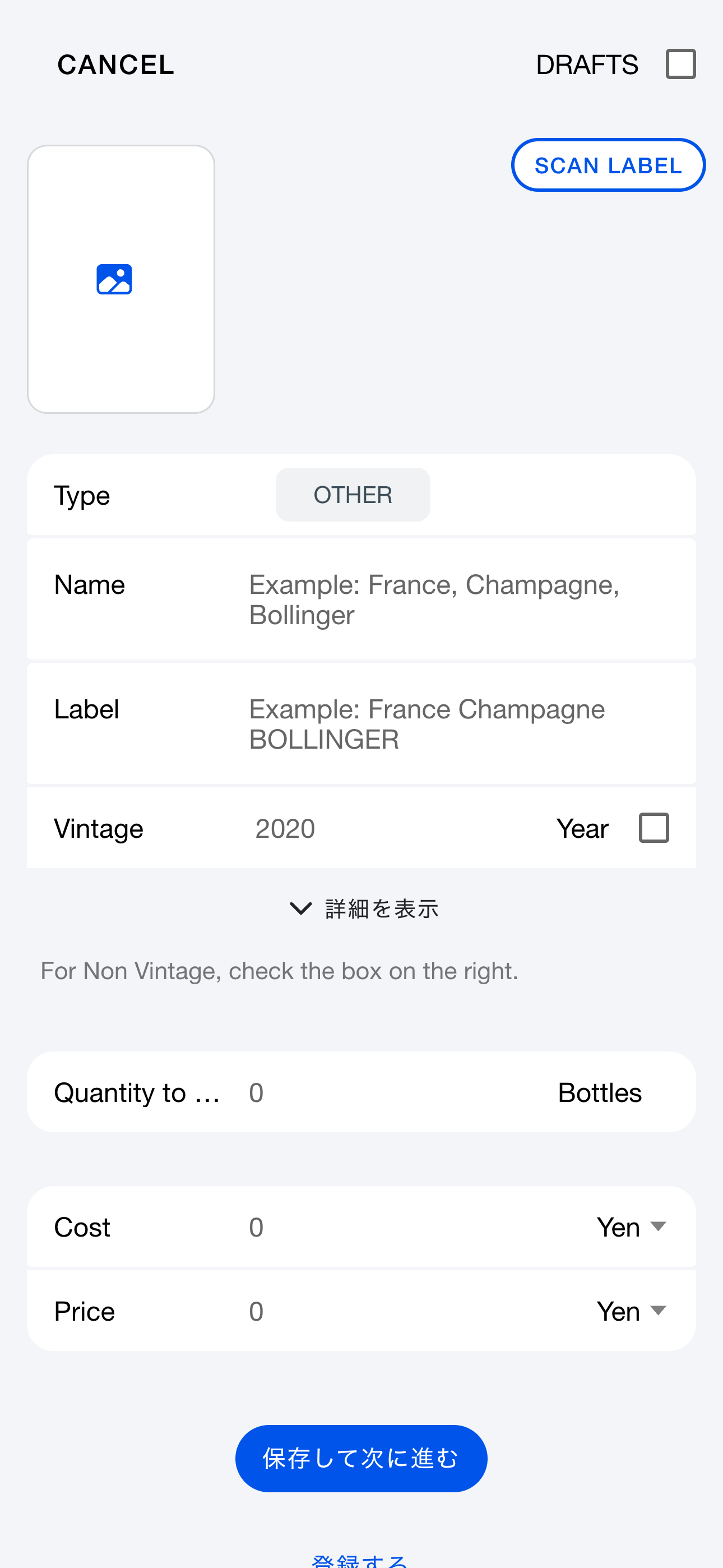
Create a thread with the + button at the bottom right. Only wine type is required; add whatever else you need for operations.
When you save, the thread appears in the list. Each thread gets an ID like “RE3012” or “WH3055”—write it on bottles or shelves to stay organized.
AI label recognition
Photograph a label and AI fills in name, vintage, region, and more. This cuts manual entry when registering many wines at once. Uses credits.
Searching threads
Use the search bar to filter threads. Enter multiple words separated by spaces.
| Search fields | Search text |
|---|
| Thread ID | ASCII letters and numbers match thread IDs partially (“RE3012” also matches “3012”). |
| Vintage | ASCII digits, partial match |
| Name / label / memo / tasting note | Partial match |
Changing stock quantity
| Transaction type | Description |
|---|
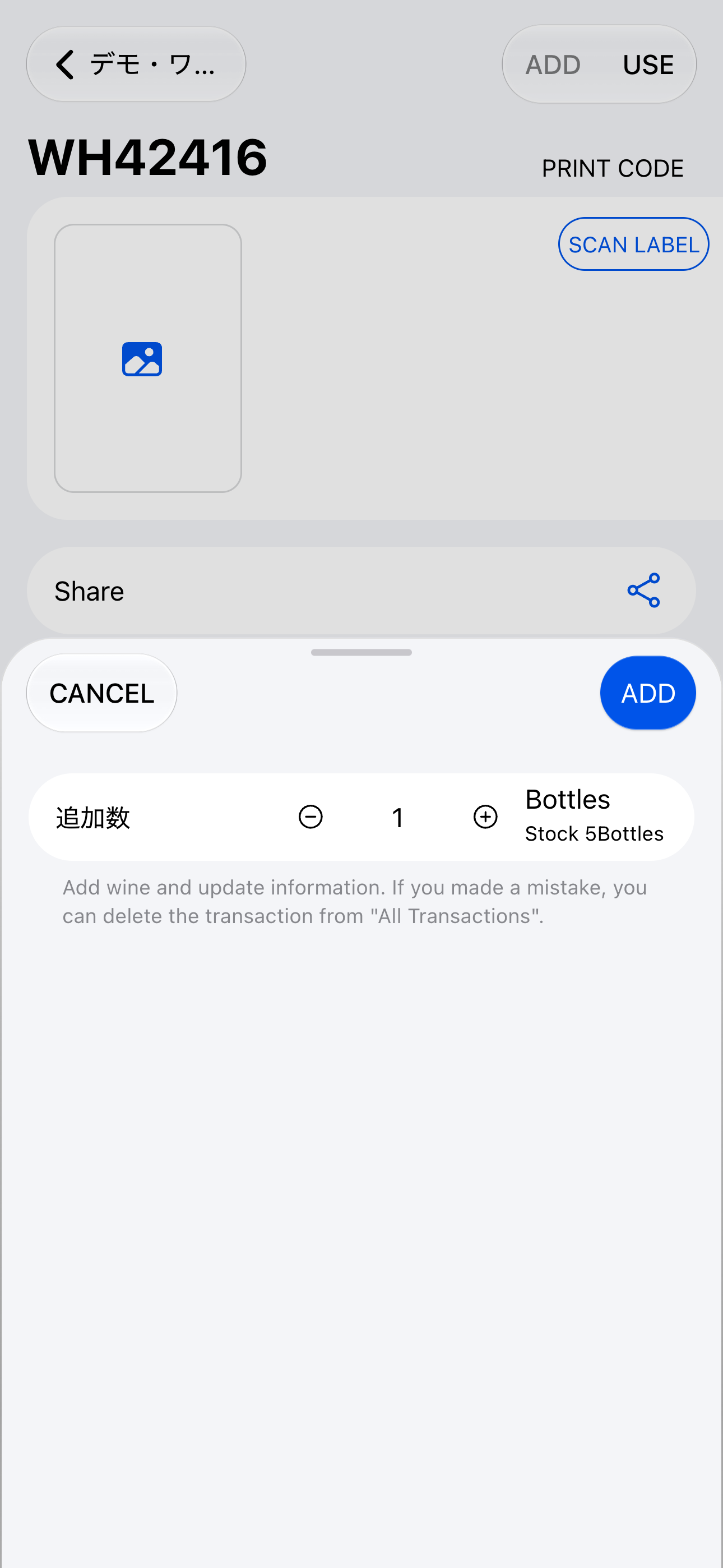
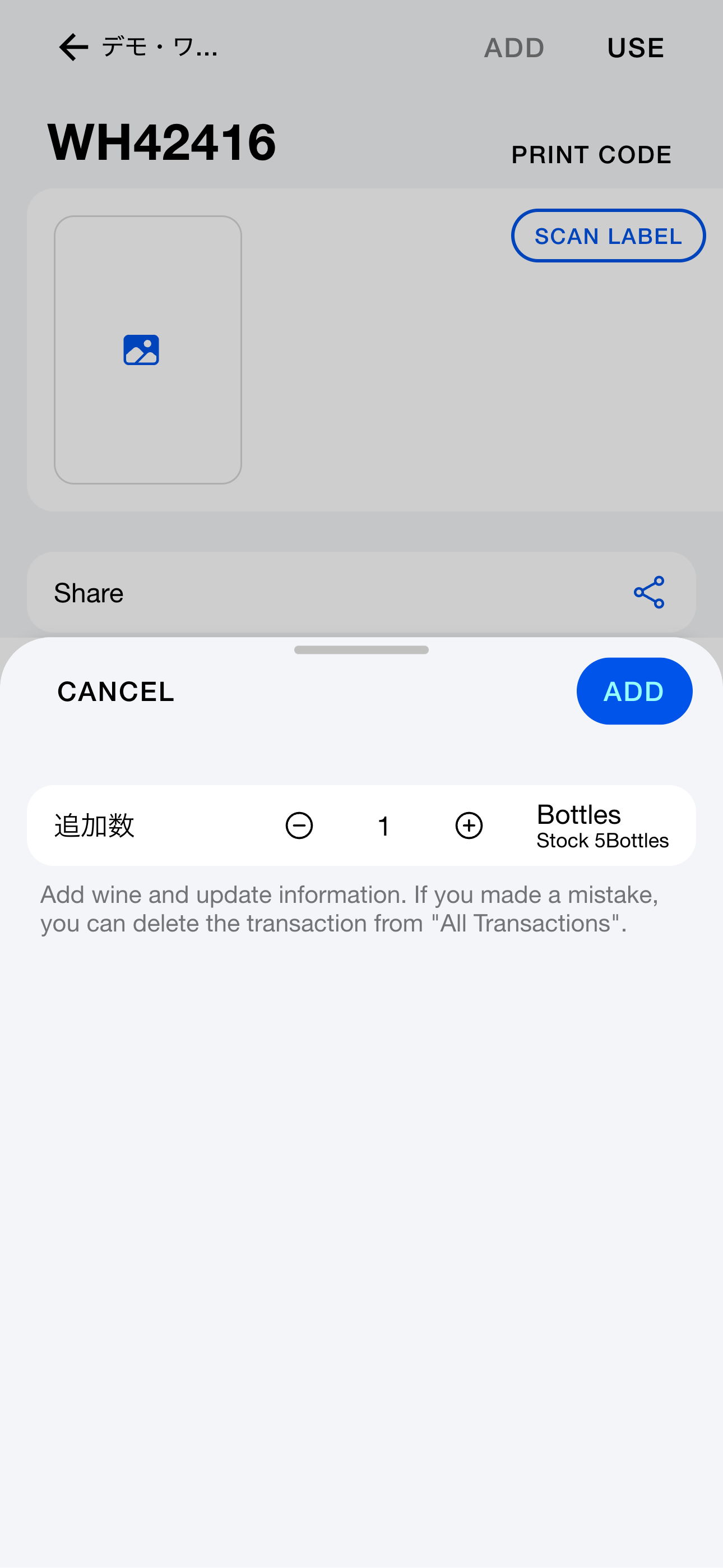
| Add | Increases stock—use when you receive wine. |
| Consume (open) | Decreases stock—use when wine is served to guests. A slip is created automatically. |
| Move between groups | Moves stock to another group |
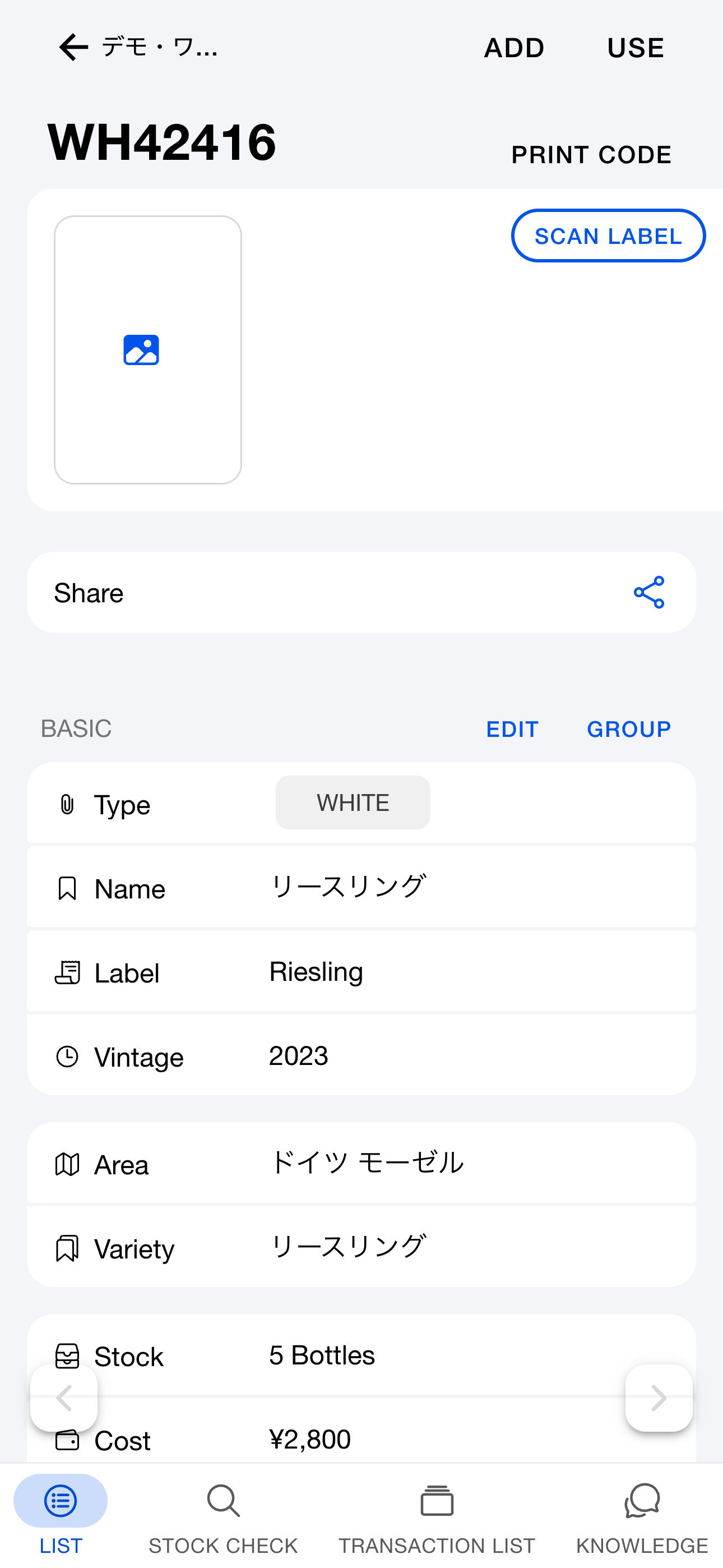
Use the button at the top right of the thread, or swipe the row on the list to reveal actions.
About slips
When you consume wine, a slip is generated for that transaction. View it under [Slips] on the Transactions tab. Slips record date, wine type, and staff.
Writing tasting notes
Besides free text, tasting notes can be generated by AI from name, type, and vintage (uses credits, ~10 seconds).
Reviewing transactions
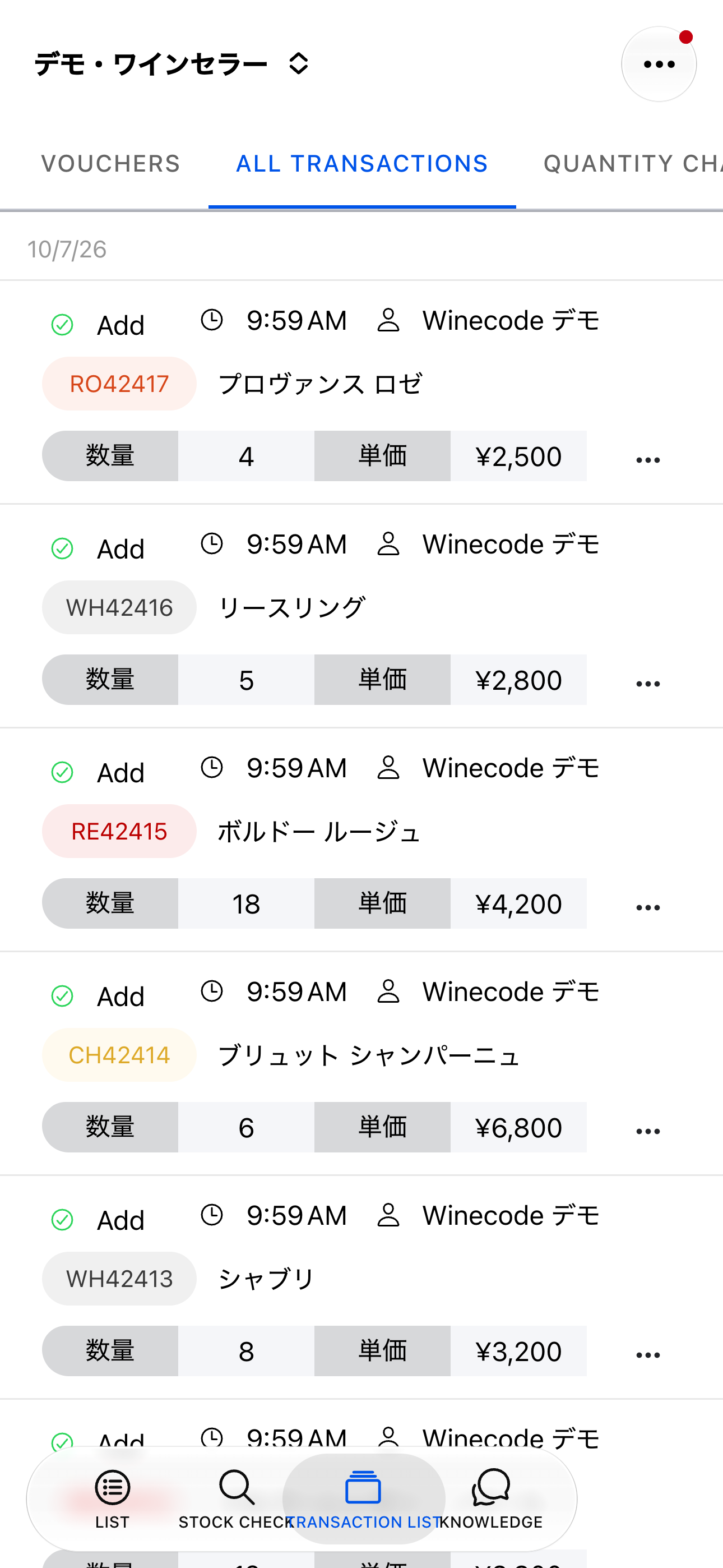
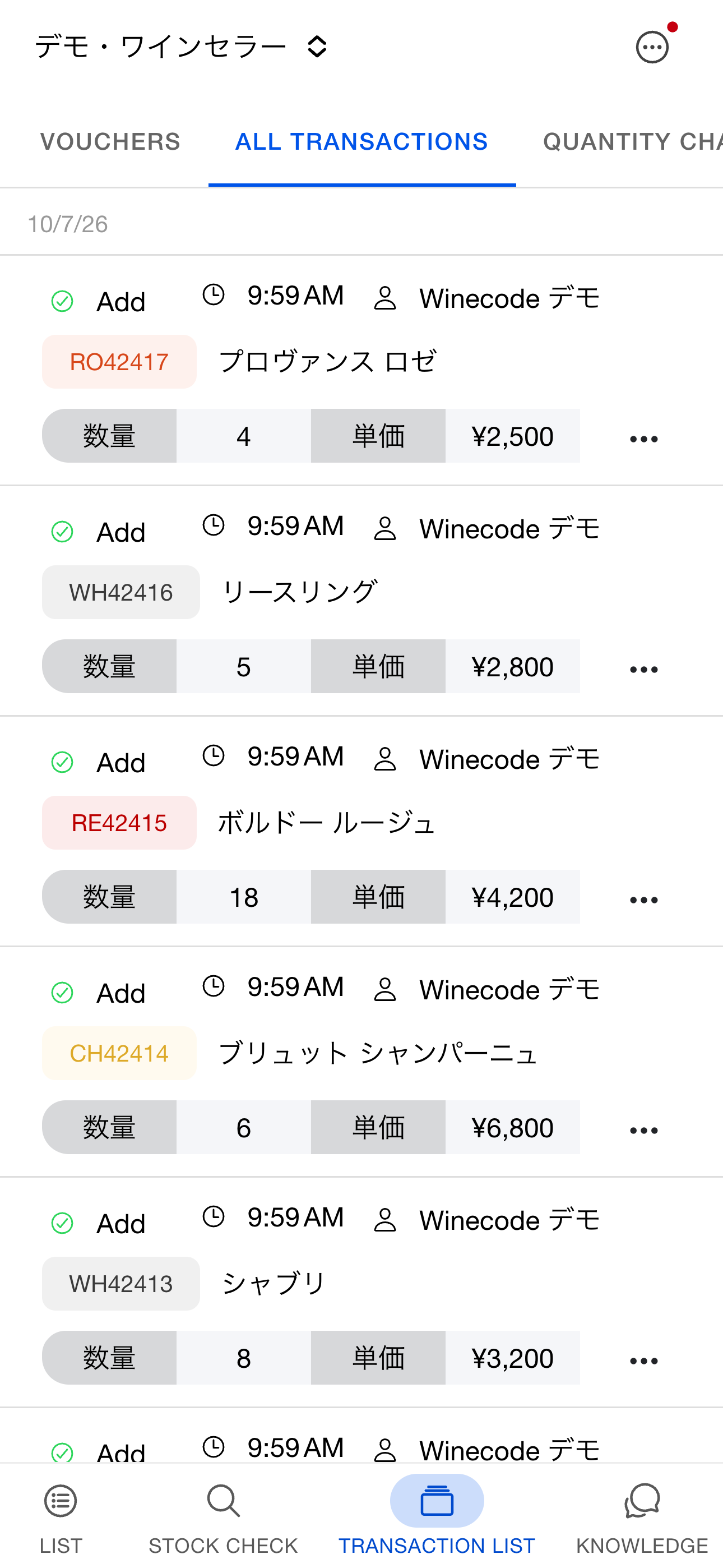
View a thread’s transactions on its detail screen. For the whole group, open the Transactions tab.
| Segment | Description |
|---|
| Slips | Slips generated from consumption transactions |
| All transactions | Every record: adds, consumption, moves, and inventory counts |
| Quantity chart | Time series of consumed / added / moved bottles |
| Value chart | Time series of consumed / added / moved amounts |
| Stock chart | Time series of stock on hand |
Barcode workflow
winecode can print and scan barcodes. Stick labels on bottles, shelves, or cases to speed up daily work.
Typical barcode workflow
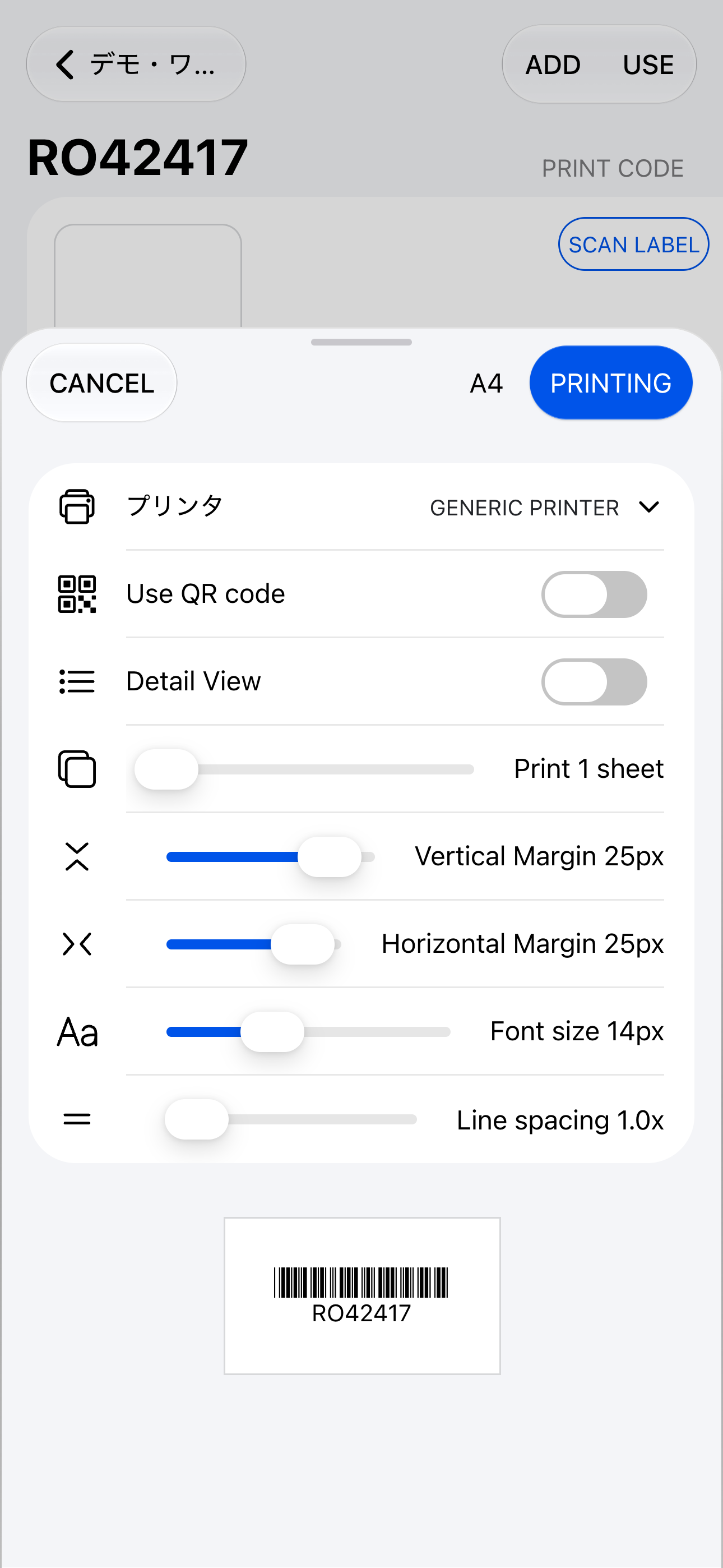
- Print barcode labels from the thread’s “Print code” action
- Attach labels to bottles, shelves, or cases
- Scan barcodes from the Stock check tab
Printing barcodes
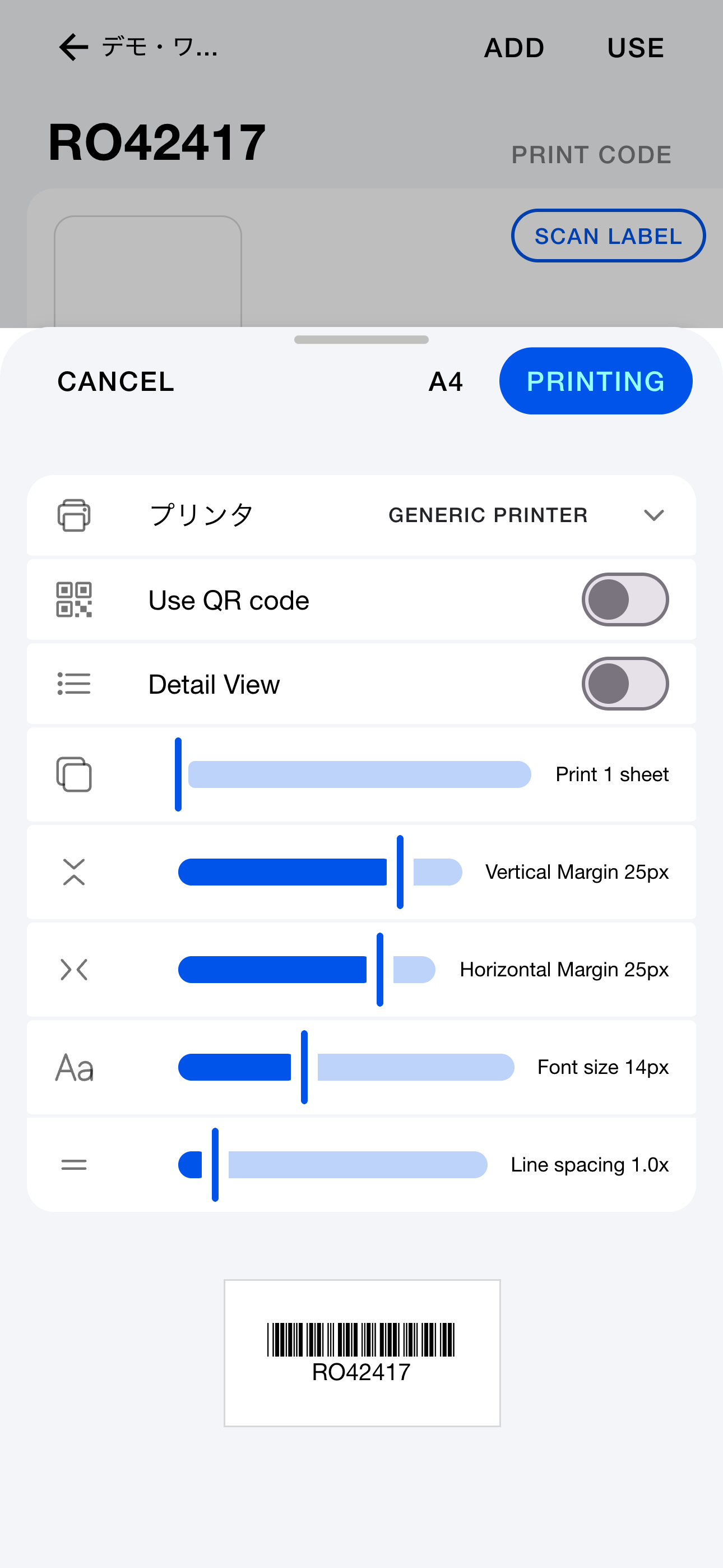
Print from the thread detail screen via “Print code.” Turn on “Show details” to include wine name and vintage on the label.
Scanning barcodes
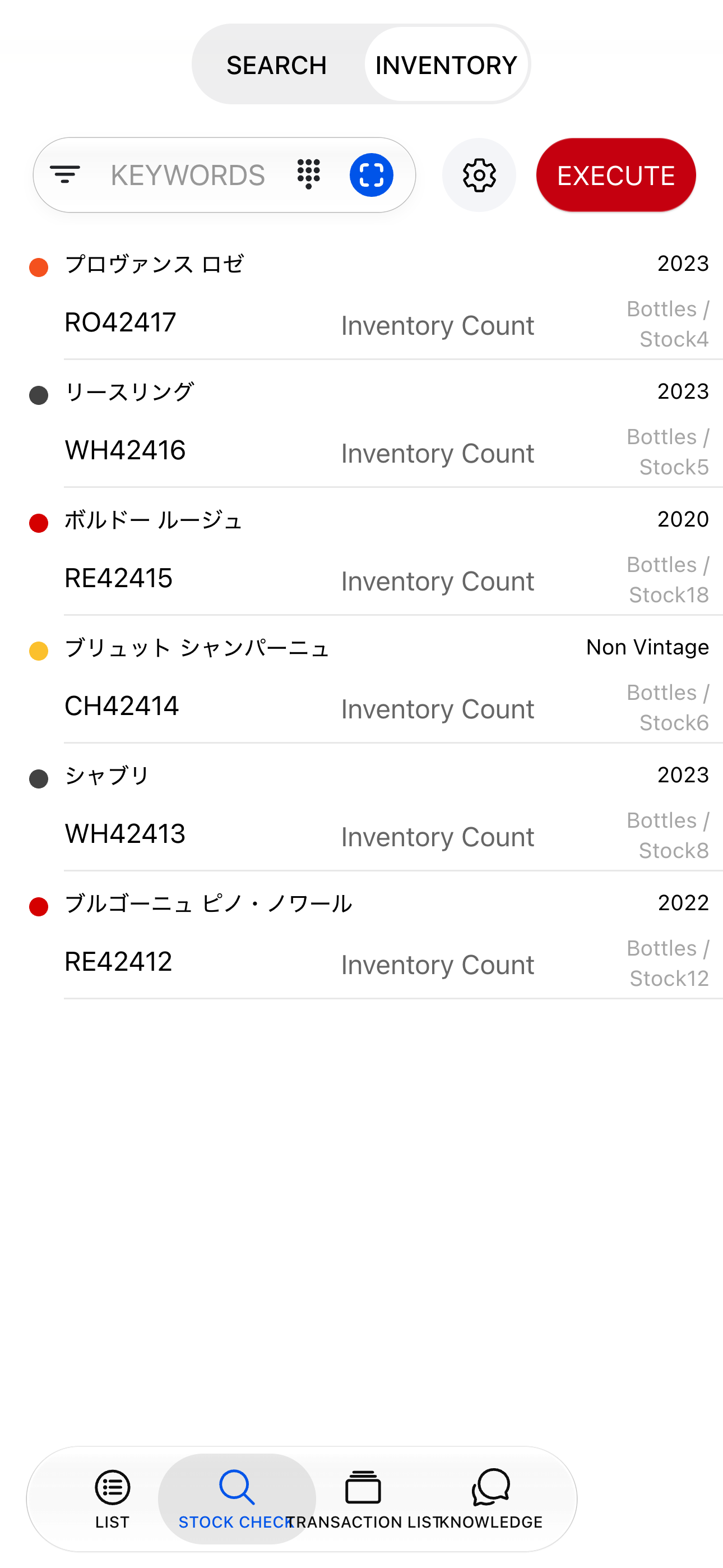
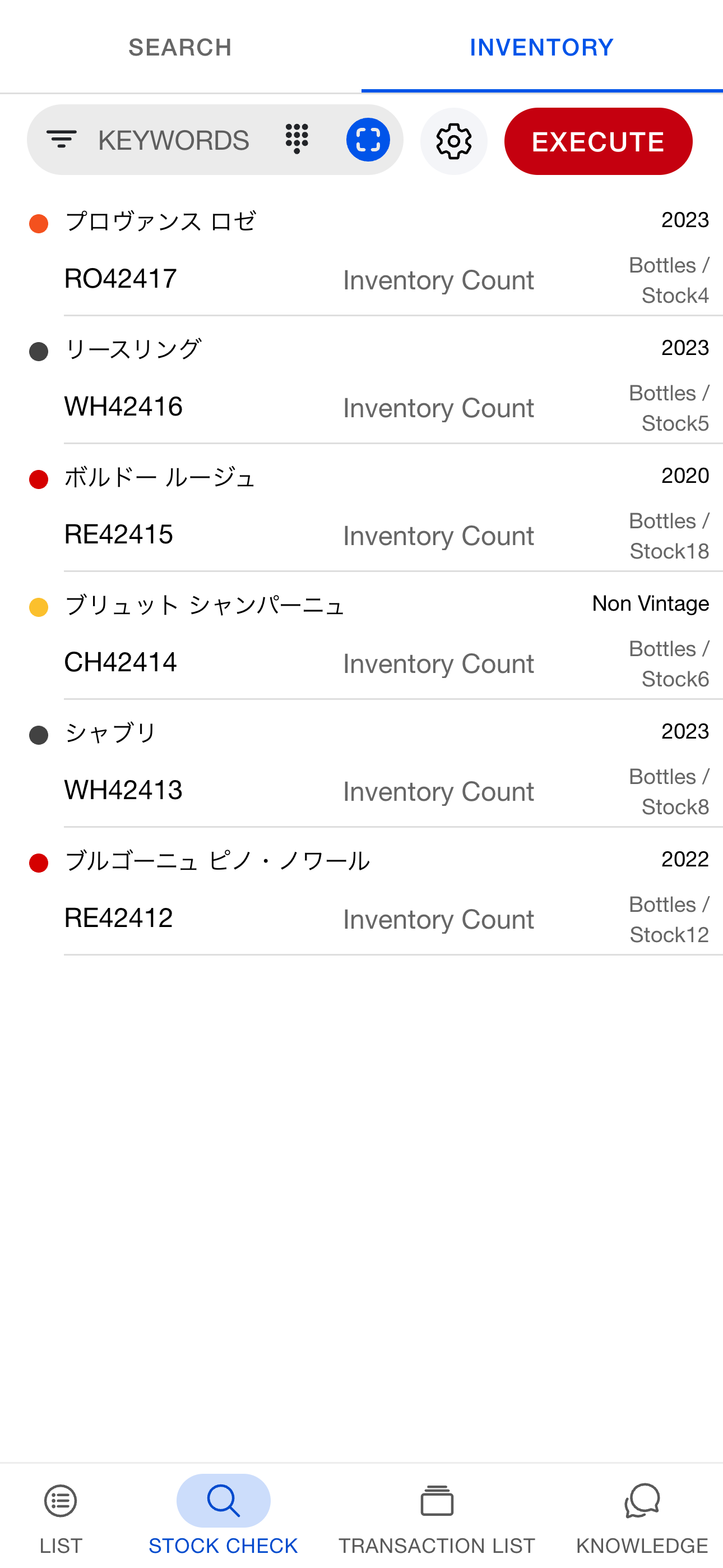
Scan from the Stock check tab at the bottom. Results list stock across groups; tap a row to open the thread.
Settings
Configure printers and readers under [Settings] > [Printer] or [Settings] > [Reader].
Supported printers
| Type | Model | Connection | Notes |
|---|
| General office printer | Any inkjet or laser | Wi-Fi / USB | Often used with A-one NYP label sheets |
| Thermal label printer | Brother QL-820NWB / QL-820NWBc | Wi-Fi | Fast printing, auto cutter |
| Thermal label printer | Brother QL-800 | USB | Android only |
| RFID label printer | SATO SCeaTa CT4-LX RFID | SmaPri integration | UHF RFID tags supported |
Use Brother QL media DK-2205 (62 mm) or DK-2210 (29 mm).
Supported RFID readers
For RFID tag inventory counts, the following readers are supported on both Free and Pro plans.
| Model | Manufacturer |
|---|
| Handy scanner SP1 | Denso |
| RFID handheld reader UF-3000 | Toshiba Tec |
Recommended products
Label sheets for office printers
Business label printer
Physical inventory
Even with careful tracking, breakage and loss can throw counts off. Regular counts keep stock accurate.
The three axes of split inventory
Terminology note: In winecode, inventory progresses per group (dining cellar, warehouse, guest wine storage, etc.). The storage location (shelf number, etc.) registered on each thread is a field used to filter the inventory screen—it is not the unit of inventory. Treat groups and storage locations (shelves) as distinct concepts.
winecode's inventory can be freely split along the following three axes. Combine them to fit your venue's size and shift rotation, and you'll keep progress steady even while staying open.
| Axis | Overview | Example |
|---|
| Filter by storage location (space axis) | On the inventory screen, filter by the storage locations (shelf numbers, etc.) registered on threads to divide your coverage along the shelf order. | Start with a storage-location filter like "today just shelves 1–5 of the dining cellar," then count straight down the shelf order. |
| Split a little at a time across days (time axis) | The inventory list is grouped by last count date, with wines you haven't counted yet at the top. | Even if you chip away during spare moments before or after service, you can see at a glance how far you've gotten. |
| Multiple staff in parallel (people axis) | Multiple staff can work the same inventory session simultaneously. | Who counted what is shared as-is, letting even large venues cut work time. Handoff conversations stay minimal. |
RFID bulk inventory
Print RFID labels on a compatible printer, attach them to bottles or shelves, then scan with an RFID reader for bulk counts (available on both Free and Pro plans).
Inventory mode lives on the Stock check tab. Turn on inventory mode to show RFID scan start/stop. When finished, tap Run to update quantities in bulk.
Supported RFID readers:
- Denso Handy Scanner SP1
- Toshiba Tec RFID handheld UF-3000
Barcode or keyword inventory
Find a thread with a barcode scanner or keyword search, then adjust quantities on the Stock check tab.
Per-thread inventory
You can also count from the thread detail screen. Direct quantity edits are logged as inventory transactions—use when adjusting for breakage or loss.